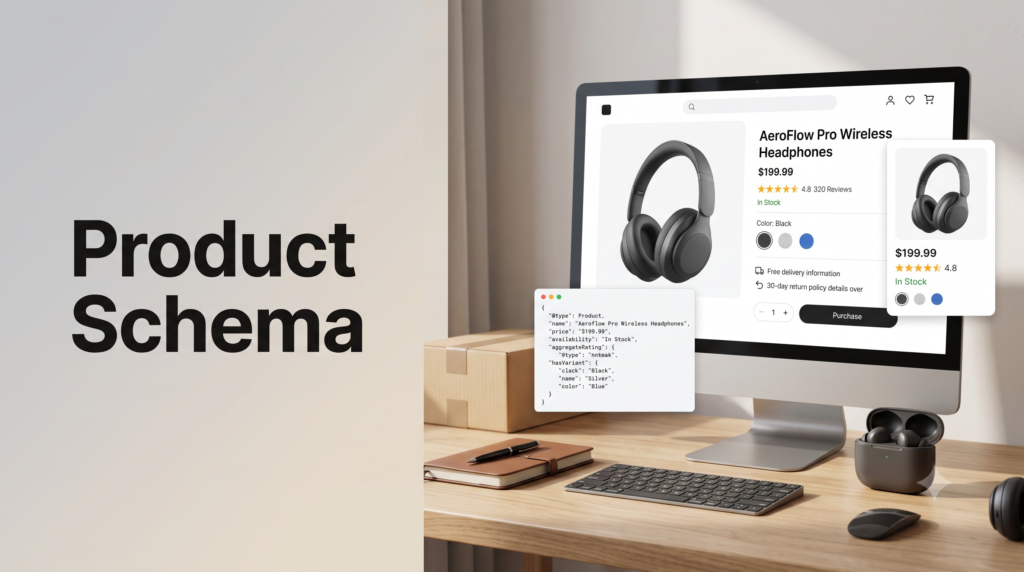
Free resource Generate and audit your product schema Our ecommerce schema tools and audit checklist help you produce valid Product and ProductGroup markup and check it at scale. Prefer it handled for you? See our ecommerce SEO service. Editorial note: This guide is for general marketing education. Google’s structured data requirements change regularly, so confirm the current required and recommended properties in Google’s official documentation before implementing, and validate with the Rich Results Test.Product Schema and Rich Results: Price, Rating, Availability and Variants
Product schema is what turns a plain blue link into a result with a price, a star rating, stock status, and even color swatches. It’s one of the highest-return technical tasks on a store, and it’s the same data AI shopping engines read. Here’s how to implement it, including the variant markup most stores get wrong.
On this page
1) Two rich-result experiences
Google turns product schema into two different result types, and knowing which you’re aiming for tells you what to include.
Experience
Where it shows / what it needs
Product snippet
Standard organic results. Shows price, star rating, and availability. Needs the core Product and Offer properties below.
Merchant listing
Richer Shopping-style experiences. Wants everything above plus shipping, returns, and strong identifiers (GTIN, MPN, brand).
2) The core properties
For a basic product snippet with price, stars, and stock, mark up a Product with an Offer. The essentials:
Get those right and a single-SKU product is eligible for the price-and-stars snippet. That covers most simple products. Products with options need more.
3) Variants: ProductGroup and hasVariant
This is where most stores go wrong. If a product comes in colors, sizes, or materials that a shopper selects, plain Product schema isn’t enough. Google introduced the ProductGroup type in 2024 specifically for this, and using it makes your variants eligible for color swatches, size selectors, and variant-specific pricing directly in Shopping results. The model is a parent and its children. The ProductGroup holds everything the variants share; each variant is a Product with its own specifics.
On the ProductGroup (shared)
On each Product variant (specific)
name, brand, description, hero image, aggregateRating, and the shipping/returns policy. Plus productGroupID (the parent SKU) and variesBy (what differs).
Its own offers (price, currency, availability), a unique sku or gtin, the differing attribute (color/size), a variant image, and a URL that pre-selects that variant.
Don’t mix the two on one page. Here’s the minimal shape of the nested pattern:
{
  "@type": "ProductGroup",
  "name": "Classic Cotton T-Shirt",
  "brand": { "@type": "Brand", "name": "Example Apparel" },
  "productGroupID": "TSHIRT-COTTON",
  "variesBy": ["https://schema.org/size"],
  "hasVariant": [
    {
      "@type": "Product",
      "name": "Classic Cotton T-Shirt, Small",
      "size": "S",
      "sku": "TSHIRT-COTTON-S",
      "image": "https://example.com/tshirt-s.jpg",
      "offers": {
        "@type": "Offer",
        "price": "29.99",
        "priceCurrency": "USD",
        "availability": "https://schema.org/InStock",
        "url": "https://example.com/tshirt?size=s"
      }
    }
    // ... one Product per variant
  ]
}
A few rules keep it valid: every variant needs its own offers object (a variant missing a price can fail the whole group), a unique identifier, and a URL that actually pre-selects that variant rather than pointing everything at the base page. And ProductGroup wraps Product, it doesn’t replace it: each variant is still a full Product. If a product has no real variants, use plain Product and don’t wrap it. Options like gift wrapping, warranties, or engraving are add-ons, not variants.
4) Shipping and returns annotations
For the richer merchant-listing treatment, add two optional blocks that produce helpful annotations in results. Shipping details (a shipping rate plus a delivery time) can surface delivery estimates, and a return policy (a return category plus the number of return days) can surface return information. These are recommended, not required, but pages with complete, transparent shipping and returns data can get preferential treatment in merchant listings. Because they’re shared across variants, they sit on the ProductGroup.
5) The golden rule: match the page
This is the rule that quietly breaks more implementations than any other. The price and availability in your schema must match what’s visible on the page. Google compares them, and if your JSON-LD says 49.99 while the page shows 39.99, or says InStock when the page says sold out, you risk losing rich-result eligibility.
The usual culprit is static schema on a dynamic page: prices that change by location, login state, or sale status, while the markup stays frozen. Generate your schema values dynamically from the same source as the visible price, so the two can never drift apart. The same discipline applies to availability, which matters most when stock changes, covered in out-of-stock, discontinued and seasonal products.
6) Implementing and validating
Keep the rollout simple and safe:
7) Common mistakes
8) Sources used
Source
What it supports
Google Search Central documentation and 2024 product-variants announcement
The Product and ProductGroup types, required and recommended properties, the two variant patterns, and validation guidance.
Practitioner schema guides (MagsTags, Greadme, Squin, Aubrey Yung)
Product snippet vs merchant listing, the match-the-page rule, identifier matching, and common validation errors.
Search Engine Journal and Schema App
The 2024 ProductGroup rollout and the hasVariant, variesBy, productGroupID, and isVariantOf properties.
DigitalApplied ecommerce analysis
Product structured data lifting organic click-through by around 30%. Directional.
FAQ: product schema and rich results
What does product schema do?
It tells search engines your product’s facts, name, image, price, availability, rating, and identifiers, in a machine-readable format. That makes your page eligible for rich results (price, stars, and stock shown in search), which lift click-through by around 30%. The same data also helps Google Shopping and AI shopping engines read and recommend your products.
What’s the difference between a product snippet and a merchant listing?
A product snippet appears in standard organic results and shows price, rating, and availability from your core Product and Offer markup. A merchant listing is a richer Shopping-style experience that also wants shipping details, return policy, and strong identifiers like GTIN and MPN. Both come from on-page schema, but the merchant listing needs more complete data.
When should I use ProductGroup schema?
Use ProductGroup when a product comes in variants a shopper selects, like color, size, or material. It groups the variants under one parent so Google can show swatches, size options, and variant pricing in results. If a product is a single SKU with no real variants, use plain Product schema instead; wrapping it in ProductGroup adds complexity with no benefit.
Do I still need Product schema if I use ProductGroup?
Yes. ProductGroup wraps Product, it doesn’t replace it. The ProductGroup holds shared attributes (name, brand, rating, shipping) and describes what varies, while each variant is still a full Product with its own price, availability, image, and identifier. Both are required for the variant rich results to work.
Does product schema replace a Merchant Center feed?
No. They serve different purposes and work together. Product schema enables rich results in organic search; a Merchant Center feed powers Shopping listings and ads. Google uses your identifiers to match the two, and larger catalogs generally want both: schema on the pages for organic visibility, a feed for Shopping.
Why aren’t my star ratings or rich results showing?
Common causes are missing required properties (like offers or aggregateRating), schema that doesn’t match the visible price or availability, invalid variant markup (a variant missing an offer can fail the whole group), or Google simply not having recrawled yet. Validate with the Rich Results Test, fix any errors, confirm the schema matches the page, and allow time for recrawling.
Where to go next
Product schema is one task that pays off on three surfaces: richer organic results, Shopping eligibility, and AI readability. Get the core Product and Offer properties right for every product, add ProductGroup for anything with variants, keep the markup matching the visible page, and validate before and after you ship.
From here, make sure the page itself is optimized in product page SEO, see how this same data drives AI recommendations in our AI search optimization guide, or step back to the full ecommerce SEO guide.
Product Schema and Rich Results: Price, Rating, Availability and Variants
Ecommerce SEO › Product Page SEO
By Rahul Saini, Author at Search Counsel Co. Last updated [Month] 2026. Part of our ecommerce SEO guide.
Featured answer: what is product schema? Product schema is structured data (in JSON-LD) that tells search engines a page’s product facts: name, image, price, availability, rating, and identifiers. It makes the page eligible for rich results, the price, stars, and stock status shown in search, which lift click-through. The same markup also helps AI shopping engines read and recommend your products.
Why bother. Enabling price, rating, and availability in your results lifts organic click-through by around 30% versus a plain link, because your listing carries more useful information at a glance. And the exact same structured data is how Google’s Shopping grids and AI assistants read your products. One task, three surfaces. This post is the ecommerce-specific detail; for what schema and JSON-LD are in general, see our schema markup guide.