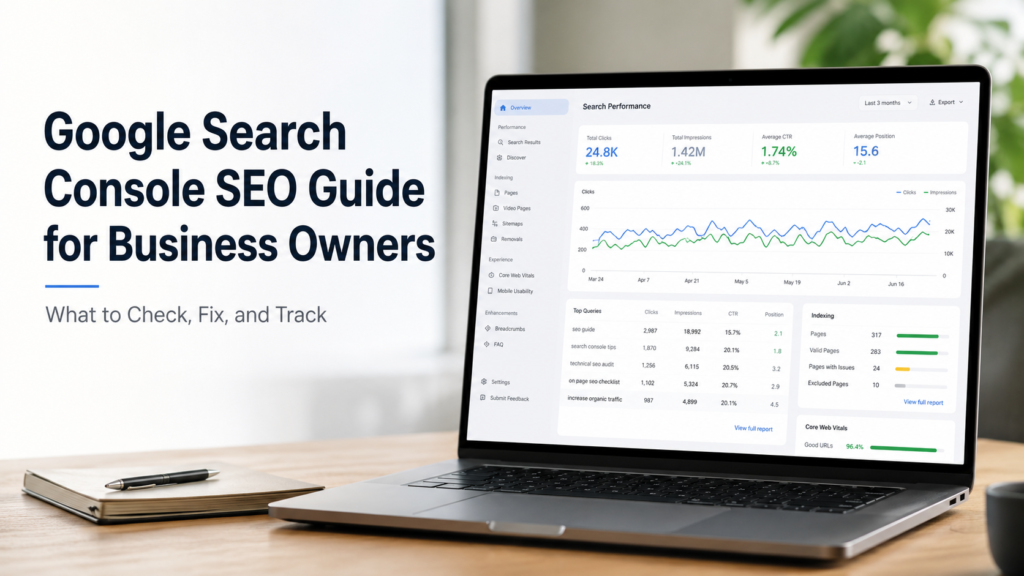
Google Search Console SEO Guide
Google Search Console SEO Guide for Business Owners: What to Check, Fix, and Track
Google Search Console helps business owners understand how their website appears in Google Search. It shows clicks, impressions, search queries, pages, indexing issues, sitemap status, and traffic changes that can guide smarter SEO decisions.
Search Visibility
Clicks + impressions
See which pages appear in Google and which results actually bring visitors.
CTR Problems
Seen but not clicked
Find pages with impressions but weak clicks, then improve titles, snippets, and intent match.
Technical SEO
Indexing checks
Use indexing reports, URL Inspection, and sitemap data to find pages Google may not show.
Content Strategy
Real query ideas
Use real search queries to update pages, create blogs, and build stronger topic clusters.
Quick answer
1. GSC shows search performance
It shows clicks, impressions, CTR, average position, queries, pages, devices, and countries.
2. GSC shows SEO problems
It can reveal low CTR pages, ranking drops, indexing issues, sitemap problems, and weak internal links.
3. GSC is not only for experts
Business owners can use simple weekly and monthly checks to understand what is working.
4. The value is action
The goal is not just reading data. The goal is knowing what to fix, update, improve, or publish next.
Google Search Console SEO is about using real Google Search data to make better decisions. It helps business owners see which pages are visible, which search queries bring impressions, which results get clicks, and where technical or content issues may be holding the site back.
The mistake many businesses make is checking Search Console only when traffic drops. That is too late. Google Search Console should be used before problems become serious. It can show early signs of low CTR, ranking weakness, indexing trouble, content gaps, and pages that need stronger internal links.
This guide explains Google Search Console in simple business language. You will learn what each report means, what numbers matter most, what mistakes to avoid, and how to use Search Console data for SEO consulting, technical SEO, on-page improvements, and content strategy.
Business-owner note:
This article is for SEO education. Google Search Console can show useful patterns, but one metric alone rarely tells the full story. For traffic drops, indexing problems, or confusing search data, a full SEO review may be needed.
Related service: If your Search Console data feels confusing, SearchCounselCo can help with SEO consulting services and technical SEO diagnosis.
Jump to what you need
1. What is Google Search Console?
2. Why business owners should use GSC
3. How to set up Google Search Console
4. Clicks, impressions, CTR, and average position
5. How to use the Performance report for SEO
6. Real GSC examples business owners understand
7. What to check when average position drops
8. How to use GSC for technical SEO
9. How to find content ideas from queries
10. SearchCounselCo’s 5-step GSC audit framework
11. Can GSC track AI Overview traffic?
15. Screenshot guide for this article
Article note: Written by SearchCounselCo Editorial Team. Last updated June 2026. Built for business owners who want to understand Google Search Console SEO without getting lost in technical reports.
1) What is Google Search Console?
Google Search Console is a free tool from Google that helps website owners understand how their website performs in Google Search. It shows which pages appear, which queries trigger impressions, which results get clicks, and whether Google has trouble crawling or indexing important URLs.
For a business owner, Google Search Console is not just a reporting dashboard. It is a search visibility map. It helps show whether your website is getting discovered, whether people are choosing your results, and whether technical problems are blocking important pages.
Google Analytics and Google Search Console are different. Google Analytics shows what users do after landing on the site. Google Search Console shows what happens in Google Search before and around the click.
Simple answer: Google Search Console helps you understand how Google sees your website, which pages get search visibility, and what SEO issues may need attention.
Image placement:
Screenshot 1: Add a screenshot of the Google Search Console dashboard showing Performance, Indexing, Sitemaps, and URL Inspection in the left menu. Use the image alt text: Google Search Console dashboard for SEO performance and indexing checks.
2) Why business owners should use Google Search Console for SEO
Business owners do not need to check every report every day. But they should understand the main Search Console reports because those reports can reveal real SEO opportunities.
A good Google Search Console SEO process can help answer questions like:
- Which pages are getting traffic from Google?
- Which search terms are people using before finding the site?
- Which pages show in Google but do not get enough clicks?
- Did traffic drop because impressions dropped, CTR dropped, or position dropped?
- Are important service pages indexed?
- Are there sitemap, crawl, or indexing problems?
- Which search queries can become new blog topics?
- Is branded traffic hiding a non-branded SEO problem?
The strongest use of GSC is not “checking numbers.” The stronger use is turning those numbers into decisions. A page with impressions but no clicks may need better title tags. A page losing clicks may need a content refresh. A service page that is not indexed may need a technical SEO fix.
If you do not know what action to take from your reports, a Search Console SEO analysis can help turn the data into a clear roadmap.
| Business question | GSC report to check | SEO action |
|---|---|---|
| Why did traffic drop? | Performance report with date comparison. | Check clicks, impressions, CTR, position, page, and query changes. |
| Why is a page not ranking? | URL Inspection and Page indexing report. | Check indexation, canonical status, internal links, and content quality. |
| What blog should we write next? | Queries tab inside Performance report. | Find repeated questions, page 2 queries, and high-impression topics. |
| Why are people not clicking? | Pages and Queries with CTR enabled. | Improve title tag, meta description, intent match, and content angle. |
3) How to set up Google Search Console
Before using Search Console for SEO, the website must be added and verified. Setup is simple, but it needs to be done correctly so you are tracking the right version of your site.
Add your website property
Google Search Console gives two main property options: Domain property and URL prefix property.
| Property type | What it tracks | Best for |
|---|---|---|
| Domain Property | All versions of the domain, including http, https, www, and non-www. | Most business websites that need complete domain-level data. |
| URL Prefix Property | Only one exact URL version. | Specific subfolders, subdomains, or limited tracking needs. |
For most business owners, a Domain property is better because it gives a fuller picture of the website.
Verify site ownership
The next step is to verify site ownership. Verification tells Google that you own or manage the website and should be allowed to see its Search Console data.
Common verification methods include DNS record, HTML file upload, HTML tag, Google Analytics, and Google Tag Manager. DNS verification is often preferred for domain-level tracking, but the best method depends on how the website is built.
Submit your sitemap
After verification, submit your XML sitemap. A sitemap helps Google discover important URLs. It is especially useful for new sites, large websites, ecommerce sites, and sites where important pages do not have strong internal links.
Google explains that a sitemap can help crawling, but it does not guarantee indexing. You can review Google’s guide on how to submit a sitemap for more details.
If your sitemap is submitted but key pages are still not indexed, the issue may be deeper. It could involve crawl access, canonical tags, internal links, page quality, or duplicate URLs. In that case, technical SEO services can help identify the real issue.
4) Clicks, impressions, CTR, and average position
The Performance report is the most important Search Console report for most business owners. It shows how the website performs in Google Search through clicks, impressions, CTR, and average position.
These numbers look simple, but they are easy to misunderstand.
Image placement:
Screenshot 2: Add a screenshot of the Performance report with clicks, impressions, CTR, and average position highlighted. Use the image alt text: Google Search Console Performance report showing clicks impressions CTR and average position.
Clicks
Clicks show how many people clicked your website from Google Search. If clicks are increasing, Google Search is bringing real visitors to your site.
Business meaning: Clicks show actual search traffic. But clicks alone do not explain whether your visibility is growing or shrinking.
Impressions
Impressions show how many times your website appeared in Google Search results. A page can get impressions even if nobody clicks it.
Business meaning: If impressions are growing but clicks are weak, Google may already be showing your page, but the title, meta description, ranking position, or page angle may not be strong enough to earn clicks.
CTR
CTR means click-through rate. It compares clicks to impressions. If a page appears 1,000 times and gets 20 clicks, the CTR is 2%.
Business meaning: Low CTR can mean your search result is visible but not attractive enough. It may need a better title, clearer meta description, stronger intent match, or richer content.
Average position
Average position shows the average ranking position across queries, pages, devices, locations, and dates. Google’s report explains clicks, impressions, CTR, and average position as core metrics inside the Performance report.
Business meaning: Average position is not one exact ranking. A page may rank position 3 for one query and position 28 for another. Always check the page and query together before making changes.
5) How to use the Performance report for SEO
The real value of Google Search Console SEO comes from using the Performance report to decide what to improve next. This is where business owners can find low-click pages, ranking opportunities, traffic drops, and content ideas.
Find pages with impressions but no clicks
One of the best quick wins is finding pages that already appear in Google but do not get enough clicks. These pages may have search visibility, but the result is not winning attention.
To check this, go to Performance, open the Pages tab, and look for pages with impressions but low clicks. Then click one page and check the Queries tab to see what searches are showing that page.
Common fixes include:
- Rewrite the title tag to match the query better.
- Improve the meta description.
- Make the first section answer the search intent faster.
- Add missing sections that users expect.
- Improve internal links to the page.
- Check whether the page is ranking for the wrong topic.
This is also where on-page SEO services can help because low CTR often connects to title tags, meta descriptions, headings, page structure, and content intent. For a deeper workflow, read the support guide on pages with impressions but no clicks.
Find keywords ranking on page 2
Queries ranking around positions 8 to 20 can be strong SEO opportunities. These keywords already have some visibility, but the page may need improvement to move higher.
Check whether the ranking page fully answers the query. If it does not, improve the content, add better examples, answer related questions, refresh outdated sections, and build internal links from relevant pages.
Simple SEO win: Page 2 keywords are often easier to improve than brand-new keywords. Google already sees some relevance. The job is to make the page stronger and more useful.
Find pages losing clicks
Search Console lets you compare date ranges, such as last 28 days vs previous 28 days. This helps you see whether a drop is happening across the whole site or only on specific pages.
If clicks dropped, ask these questions:
- Did impressions also drop?
- Did CTR drop?
- Did average position drop?
- Is the drop on one page or many pages?
- Is the drop coming from branded or non-branded queries?
- Did the page recently change?
- Did competitors update their content?
A click drop with stable impressions can point to CTR issues. A click drop with lower impressions can point to reduced visibility. A click drop with lower average position can point to ranking loss.
Compare branded and non-branded queries
Branded queries include your company name, product name, founder name, or brand-specific searches. Non-branded queries are searches from people who do not already know your business.
This split matters because total traffic can look stable while non-branded SEO traffic is dropping. For example, brand searches may grow because of referrals or ads, while service keyword visibility is getting weaker.
SearchCounselCo already has a detailed guide on branded and non-branded traffic. Use that guide when you want to separate brand demand from real SEO discovery.
Compare mobile vs desktop CTR
Device data can reveal problems that are easy to miss. A page may perform well on desktop but poorly on mobile. That can happen because the title is cut off, the page loads slowly, the search result looks less helpful, or mobile users have different intent.
Before assuming there is a ranking problem, compare mobile and desktop data.
6) Real GSC examples business owners understand
This is where Google Search Console becomes practical. Instead of only asking “Did traffic go up or down?”, look at the pattern behind the change.
| GSC pattern | What it usually means | What to do next |
|---|---|---|
| 12,000 impressions, 40 clicks | The page is visible, but CTR is weak. | Review title, meta description, intent, and SERP competitors. |
| Clicks down, impressions stable | People still see the page, but fewer click it. | Check CTR, title changes, rich results, and SERP layout. |
| Clicks down, impressions down | Visibility may be shrinking. | Check ranking drops, indexing, content freshness, and competitors. |
| Average position down, impressions up | The page may be showing for more broad queries. | Check query mix before assuming rankings are worse. |
| Important page not indexed | Google may not be showing the page at all. | Use URL Inspection and review sitemap, canonical, noindex, and internal links. |
Business takeaway: The same traffic drop can have different causes. A CTR problem is not fixed the same way as an indexing problem. That is why Search Console data should be reviewed by page, query, device, and date range.
7) What to check when average position drops
Average position can drop for many reasons. Sometimes the drop is serious. Sometimes it is only noise caused by query mix, device changes, new impressions from lower-ranking keywords, or a short date range.
Before changing anything, compare the current period with a previous period. Google’s guide to debug Google Search traffic drops recommends checking patterns by queries, URLs, countries, devices, and search appearance.
| What to check | Why it matters | Possible action |
|---|---|---|
| Query-level data | The drop may come from one group of searches. | Improve the page for those queries. |
| Page-level data | One important page may be losing visibility. | Refresh the page or add stronger internal links. |
| Device data | Mobile and desktop may behave differently. | Review mobile UX and snippet appearance. |
| Impressions | New low-position impressions can lower average position. | Check whether visibility is actually expanding. |
| Recent changes | Page edits can change ranking signals. | Compare old and new page structure. |
For a deeper workflow, read the support guide on average position dropped in Search Console.
If several important pages dropped at once, deeper SEO audit findings may be needed to understand whether the issue is technical, content-related, algorithm-related, or caused by search intent changes.
8) How to use Google Search Console for technical SEO
Search Console is not only a reporting tool. It also helps business owners and SEO teams find technical issues that can limit search visibility.
Check indexing problems
The Page indexing report shows which pages Google indexed and which pages are not indexed. Not every non-indexed page is a problem. Admin pages, duplicate URLs, filter pages, and thin pages may not need indexing.
But important service pages, landing pages, product pages, and useful blog posts should be checked. If a valuable page is not indexed, the issue could involve internal linking, canonical tags, noindex tags, duplicate content, page quality, or crawl access.
Use the URL Inspection tool
The URL Inspection tool lets you check one specific URL. It can show whether Google indexed the page, whether the page is crawlable, and whether Google sees indexing problems.
Use URL Inspection when:
- A new page is not showing in Google.
- An important service page lost visibility.
- You updated a page and want Google to recrawl it.
- You suspect canonical or indexing issues.
- You want to confirm whether Google can access the live URL.
If important URLs keep failing indexing checks, a technical SEO audit can help find the deeper reason.
Check sitemap issues
In the Sitemaps report, check whether your sitemap was submitted successfully and whether Google could read it. Make sure important URLs are included.
A sitemap should support discovery, but internal linking still matters. If a page is important, it should not only exist in the sitemap. It should also be linked naturally from related pages.
Review Core Web Vitals
Core Web Vitals reports can help business owners see whether page experience issues affect groups of URLs. Slow templates, layout shifts, or poor interaction speed can hurt user experience and conversions.
Do not only look at the total score. Review affected URLs and identify whether the issue comes from the page template, image size, scripts, hosting, or design layout.
Find internal link gaps
Internal links help Google understand which pages are important and how topics connect. If a service page has impressions but weak ranking, it may need stronger internal links from relevant blogs and guides.
For example, this Google Search Console SEO guide should internally link to SEO consulting, technical SEO, on-page SEO, content strategy, branded query analysis, AI visibility tracking, and both support blogs in this cluster.
Image placement:
Screenshot 3: Add a screenshot of URL Inspection for an indexed page and a non-indexed page. Use the image alt text: Google Search Console URL Inspection tool for checking page indexing status.
9) How to find new content ideas from Search Console queries
Search queries inside GSC show what people already search before your website appears. This makes Search Console one of the best tools for finding realistic content opportunities.
Look for:
- Queries with impressions but low clicks.
- Question-style queries that can become FAQ sections.
- Queries ranking around positions 8 to 20.
- Service-related queries that deserve stronger landing pages.
- Repeated topic patterns across multiple pages.
- Queries where the wrong page is ranking.
For example, if a business website gets impressions for “technical SEO audit checklist,” that query can become a support guide. That guide can then link back to the technical SEO service page.
This is where content strategy services can help. Search Console data should not only be used for reporting. It should guide content updates, new blog topics, internal links, and topic cluster planning.
10) SearchCounselCo’s 5-step GSC audit framework
A normal Search Console review looks at data. A useful Search Console SEO audit turns that data into decisions. At SearchCounselCo, the review should follow a simple framework.
Step 1: Visibility
Check impressions by page and query to see where Google is already showing the site.
Step 2: Click behavior
Check CTR and clicks to find pages that are visible but not attracting enough users.
Step 3: Ranking movement
Compare average position by query, page, device, and date range before making changes.
Step 4: Indexing health
Use Page indexing, URL Inspection, and sitemap reports to confirm important URLs can appear in Google.
Step 5: Action map
Turn findings into content updates, technical fixes, internal links, new pages, or SEO consulting priorities.
Why this matters: A business owner should not leave Search Console with more confusion. They should leave with a clear list of pages to fix, pages to update, queries to target, and technical issues to check.
11) Can Google Search Console track AI Overview or AI Mode traffic?
Search is changing because AI features are becoming more common in Google results. Business owners may now wonder whether Search Console can show traffic from AI Overviews or AI Mode separately.
Google’s documentation on AI features in Search explains how content may appear across AI-powered search experiences. For practical reporting, Search Console is still most useful for overall Google Search performance, query trends, pages, clicks, impressions, CTR, and average position.
The important point is this: Search Console can help you see broad search performance trends, but business owners should not rely on GSC alone to understand full AI search visibility. AI visibility also includes brand mentions, citations, answer inclusion, sentiment, and how tools like ChatGPT, Gemini, Perplexity, and Google AI features describe your brand.
For that deeper layer, SearchCounselCo’s guide on AI search visibility tracking can support this topic.
12) Weekly Google Search Console SEO checklist
Business owners do not need to spend hours inside GSC every week. A simple weekly routine is enough to catch early problems and spot quick wins.
| Weekly check | What it means | Action to take |
|---|---|---|
| Top pages by clicks | Shows which pages bring visitors. | Protect and improve these pages. |
| High impressions, low clicks | Shows CTR opportunities. | Improve titles, descriptions, and intent match. |
| Queries gaining impressions | Shows new search demand. | Add sections, FAQs, or new content. |
| Pages losing clicks | Shows early traffic decline. | Compare queries, CTR, and average position. |
| Indexing issues | Shows pages Google may not show. | Inspect important URLs. |
| Sitemap status | Shows whether Google can read your sitemap. | Fix sitemap errors quickly. |
| Branded vs non-branded | Shows whether SEO discovery is growing. | Review non-branded traffic separately. |
13) Monthly Google Search Console SEO checklist
A monthly review should go deeper than the weekly check. This is where business owners can decide what to update, what to publish, and what needs technical review.
- Compare last 28 days vs previous 28 days.
- Review top gaining pages.
- Review top declining pages.
- Separate branded and non-branded traffic.
- Review service page performance.
- Review blog performance.
- Find pages with high impressions but weak CTR.
- Find queries ranking on page 2.
- Check indexation for new pages.
- Identify internal linking opportunities.
- Create next month’s content plan from query data.
Search Console can also be used with Google Analytics. Search Console helps with pre-click search data. Analytics helps show what visitors do after they land on the website. When both are reviewed together, business owners get a clearer picture of visibility, traffic quality, and conversion behavior.
14) Common Google Search Console mistakes business owners make
Judging SEO from one day of data
Daily SEO numbers move. One-day drops can happen because of normal search behavior, tracking delays, seasonality, or query changes. Use weekly and monthly comparisons before making big decisions.
Looking only at clicks
Clicks matter, but impressions can show future opportunity. A page may not get many clicks yet, but growing impressions can show that Google is starting to test or understand the page.
Mixing branded and non-branded traffic
Branded traffic can hide SEO problems. A business may get more brand searches while non-branded service traffic is dropping. Always separate the two when reviewing SEO progress.
Changing pages without checking queries
A page can rank for many queries. If you update a page without checking which queries are driving impressions and clicks, you may remove sections that support existing visibility.
Panicking over average position
Average position is not one fixed ranking. It is an average across many searches, pages, devices, and locations. Always review query-level and page-level data before reacting.
Ignoring pages with impressions but no clicks
These pages are important because Google already shows them. Improving CTR can sometimes bring more traffic faster than writing a completely new page.
Ignoring indexing reports
If important pages are not indexed, they cannot bring organic search traffic. Check indexing reports regularly, especially after publishing new pages or updating site structure.
15) Screenshot guide for this article
This topic competes with screenshot-heavy guides from large SEO sites. To make this guide stronger, add real screenshots from Google Search Console where possible.
| Screenshot | Where to place it | Suggested alt text |
|---|---|---|
| GSC dashboard | After “What is Google Search Console?” | Google Search Console dashboard for SEO performance and indexing checks |
| Performance report | Inside metrics section | Google Search Console Performance report showing clicks impressions CTR and average position |
| Queries tab | Inside content ideas section | Google Search Console queries report for finding SEO content ideas |
| URL Inspection | Inside technical SEO section | Google Search Console URL Inspection tool for checking page indexing status |
| Page indexing report | Inside indexing section | Google Search Console Page indexing report showing indexed and not indexed URLs |
16) When should you hire an SEO consultant?
You do not need an SEO consultant for every small Search Console check. But expert help becomes useful when the data affects leads, sales, service pages, or important business decisions.
You may need SEO help if:
- Traffic dropped and you cannot identify the cause.
- Important service pages are not indexed.
- Impressions are growing but clicks are weak.
- Average position dropped across many pages.
- You do not know which content to update first.
- Technical errors keep returning.
- Branded traffic is hiding non-branded decline.
- You want to turn GSC data into a real SEO roadmap.
If your Search Console data shows ranking drops, indexing problems, or pages with impressions but weak clicks, SearchCounselCo can help with SEO consulting services and a focused technical SEO audit.
17) Official sources used for this guide
This guide uses official Google documentation wherever possible because Google Search Console data should be explained from reliable sources.
| Source | What it supports |
|---|---|
| Google Search Console official guide | What Search Console is and how website owners can start using it. |
| Google sitemap guide | Why sitemaps help discovery and why they do not guarantee indexing. |
| Search Console Performance report | Clicks, impressions, CTR, average position, queries, pages, and devices. |
| URL Inspection tool | How to inspect a specific URL and check indexability. |
| Page indexing report | How to review indexed and non-indexed pages. |
| Debug Google Search traffic drops | How to review traffic drops by query, page, country, device, and search appearance. |
| AI features in Search | Context around AI-powered Search features and how content can appear in them. |
FAQ: Google Search Console SEO for business owners
What is Google Search Console used for in SEO?
Google Search Console is used to track search performance, check clicks and impressions, review search queries, monitor indexing, inspect URLs, submit sitemaps, and find SEO issues that may affect visibility.
Is Google Search Console free?
Yes. Google Search Console is a free tool from Google. Website owners can use it to monitor how their site appears in Google Search.
How often should business owners check Google Search Console?
Business owners should check basic Search Console data weekly and do a deeper review monthly. Weekly checks help catch early problems, while monthly reviews help guide SEO strategy.
What does impressions mean in Google Search Console?
Impressions show how often your website appeared in Google Search results. A page can get impressions even when users do not click the result.
Why do I have impressions but no clicks?
Impressions without clicks can happen because of weak title tags, poor meta descriptions, low ranking position, SERP features, irrelevant queries, or content that does not match search intent well enough.
What does average position mean in Google Search Console?
Average position is the average ranking position of your site across queries, pages, devices, locations, and dates. It should not be treated as one fixed ranking number.
Can Google Search Console show why my traffic dropped?
Google Search Console can help diagnose traffic drops by comparing pages, queries, dates, countries, devices, CTR, impressions, and average position. Deeper SEO analysis may still be needed for technical or content-related issues.
Can Google Search Console show AI Overview traffic?
Google Search Console is useful for overall Google Search performance, but business owners may need additional AI visibility tracking to understand AI mentions, citations, and brand visibility across AI-powered search tools.
Should I use Google Search Console or Google Analytics?
Use both. Search Console shows search visibility and pre-click data. Google Analytics shows what visitors do after they land on your website.
Do I need an SEO consultant to use Google Search Console?
You do not need a consultant for basic checks. But an SEO consultant can help when traffic drops, pages are not indexed, CTR is weak, or you need a clear SEO roadmap from Search Console data.
Conclusion: Google Search Console is useful only when you know what action to take
Google Search Console is one of the most valuable SEO tools for business owners because it shows how your website performs in Google Search. But the real value is not only in checking clicks, impressions, CTR, or average position. The real value comes from understanding what those numbers mean and what to do next.
A strong Google Search Console SEO process helps you find low-click pages, ranking drops, indexing problems, content ideas, internal link gaps, and early signs of traffic loss. When reviewed regularly, GSC can guide content updates, technical fixes, SEO audits, and better business decisions.
Start simple. Check your top pages, top queries, CTR, average position, indexing status, and branded vs non-branded traffic. Then use that data to decide what to update, what to fix, and what to publish next.
Need help reading your Search Console data? If your reports show ranking drops, indexing issues, low CTR pages, or confusing search trends, SearchCounselCo can help with SEO consulting, technical SEO audits, and content strategy planning.
Next step: Visit SearchCounselCo SEO Consulting to turn Google Search Console data into a clear SEO action plan.