Google Search Console & SEO Analytics
Google Search Console’s built-in AI can turn a plain-English request into Performance-report filters, comparisons and metric selections. But it does not sort your worst pages, apply row-level CTR thresholds, export data, diagnose why rankings fell, or replace a full SEO analysis.
Knowing that boundary is what makes the feature genuinely useful. This guide shows what Google Search Console AI-powered configuration can actually do, which prompts fit its documented capabilities, which common prompt ideas do not, and what an SEO should do after the report has been configured.
By Rahul S., SEO Strategist at Search Counsel Co. Last updated August 2026.
Quick answer: What is Google Search Console AI-powered configuration?
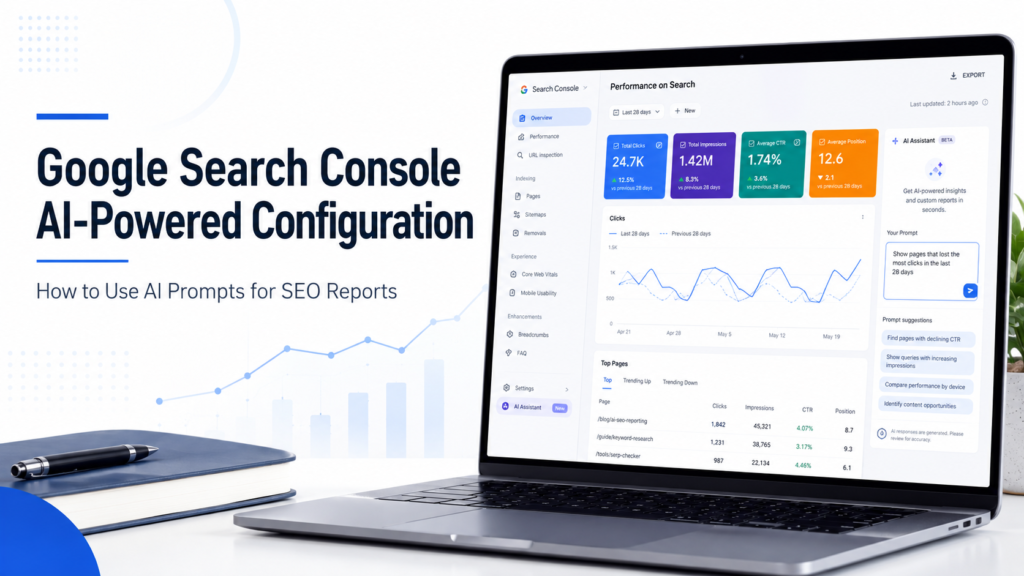
AI-powered configuration is an experimental feature inside the Search results Performance report that converts natural-language instructions into supported report settings such as query, page, country, device, search appearance and date filters; date comparisons; and selections for clicks, impressions, average CTR and average position. It configures the report view—it does not perform full row-level analysis or explain why SEO performance changed.
The most important distinction: Search Console’s built-in AI is a configuration assistant, not an autonomous SEO analyst. Use it to build the right data view faster, then verify the filters and analyze the resulting rows yourself.
In this guide
1. Which Search Console AI feature do you mean?
6. Configure → Verify → Analyze → Act
8. Prompt compatibility matrix
9. Prompts that fit the feature
13. Country, device and folder analysis
14. Configuration vs external AI analysis
15. AI configuration vs Generative AI report
17. Why the feature may be missing
18. Configuration QA checklist
Which Google Search Console AI Feature Do You Mean?
“Google Search Console AI” now describes several different products or workflows. They should not be treated as the same thing.
AI-powered configuration
Turns a plain-English request into supported Performance-report filters, comparisons and metric selections. This is the feature covered in this guide.
Generative AI Performance report
A separate Search Console report showing first-party impressions from supported Google generative-AI Search features such as AI Overviews and AI Mode.
Search generative AI control
A separate Search Console setting used to manage whether a property’s content can participate in supported Google generative-AI Search experiences.
External AI analysis
Using exported or connected Search Console data with another AI assistant or analysis system. This is separate from Google’s built-in report configuration tool.
If your goal is to measure AI Overviews, AI Mode impressions, citations or SERP visibility, use SearchCounselCo’s AI Overview and SERP feature tracking guide.
Is Search Console AI-Powered Configuration Available to Everyone?
Availability has changed during the rollout, so older articles can give conflicting answers.
Google announced AI-powered configuration in December 2025 as an experimental feature and initially described a limited rollout.
Google’s current Search Console Help documentation still describes the feature as experimental and says it is visible to only a small percentage of Search Console users for testing and feedback.
August 2026 availability note: If you do not see the AI-powered configuration option in your Search results Performance report, do not assume the property has a technical problem. Check Google’s current Help documentation first because access remains dependent on the active experiment or rollout state.
Where should the option appear?
When available, open:
Search Console → Performance → Search results
Then use the filter control in the Performance report header to open the AI configuration side panel.
You type the requested report view into the prompt field. Search Console suggests the corresponding configuration, and you review and confirm it before applying the settings.
How AI-Powered Configuration Works
Google’s configuration assistant is designed around three main jobs.
1. Apply supported filters
Google documents filter support for dimensions such as:
- query,
- page,
- country,
- device,
- search appearance,
- date range.
2. Configure comparisons
The assistant can help build comparisons that would otherwise require several manual clicks, including custom date comparisons.
3. Select metrics
It can configure the four standard Search results Performance metrics:
- Clicks
- Impressions
- Average CTR
- Average Position
For the deeper mechanics of those metrics, use SearchCounselCo’s Search Console Performance report guide.
What Search Console AI Can Actually Do
| Task | Can AI configuration do it? | Example |
|---|---|---|
| Filter by query text | Yes | Queries containing “pricing” |
| Filter by page pattern | Yes | Pages containing /blog/ |
| Filter by country | Yes | Searches from the United States |
| Filter by device | Yes | Mobile searches |
| Select metrics | Yes | Clicks, impressions and CTR |
| Configure date comparison | Yes | Last 28 days vs previous 28 days |
What Search Console AI Cannot Do
This is where many otherwise useful prompt lists become misleading.
| Task | Status | Why |
|---|---|---|
| Show rows where CTR is below 2% | Not supported as direct row filtering | Requires filtering table rows by a metric threshold |
| Show the 20 pages with the biggest click losses | Not supported | Requires sorting/ranking rows |
| Show pages where clicks dropped by more than 30% | Not supported as written | Requires row-level calculation and threshold logic |
| Export the report | Not supported | Export remains a normal report action |
| Explain why traffic dropped | Wrong job | Requires SEO diagnosis rather than configuration |
Useful rule: If the prompt asks Search Console to configure what data should be shown, it may fit the feature. If it asks the AI to rank, judge, calculate or explain the rows after they are shown, that work usually belongs in the next analysis step.
The SearchCounselCo 4-Step GSC AI Workflow
1. Configure
Use natural language to build the filters, comparison and metrics you need.
2. Verify
Check exactly what Search Console applied before trusting the report.
3. Analyze
Sort, calculate, compare and interpret the resulting rows manually or with another analysis workflow.
4. Act
Choose an SEO action only after the pattern has been verified.
The Search Console AI Prompt Formula
Metric(s) + filterable dimension + scope + date/comparison
Example:
- Metrics: clicks and impressions
- Dimension: pages
- Scope: contains /blog/ + mobile
- Date: last 28 days
Will This Search Console AI Prompt Actually Work?
| Prompt | Verdict | Why | What to do next |
|---|---|---|---|
| Show clicks and impressions for pages containing /blog/ in the last 28 days. | Supported pattern | Metrics + page filter + date | Review resulting rows |
| Compare mobile clicks in the last 28 days with the previous 28 days. | Supported pattern | Device + metric + comparison | Inspect the comparison |
| Show CTR and position for queries containing “pricing” in the United States. | Supported pattern | Query + country + metrics | Review query rows |
| Show pages with CTR below 2%. | Unsupported as written | Requires direct metric row filtering | Show pages + CTR, then identify low-CTR rows manually |
| Show the top 20 pages with the biggest click losses. | Unsupported as written | Requires sorting/ranking rows | Configure comparison, then sort manually |
| Why did traffic drop? | Wrong job | Requires diagnosis | Create a comparison first, then investigate |
| Export this report. | Unsupported | AI configuration does not perform exports | Use Search Console’s normal export function |
Search Console AI Prompts That Fit the Documented Capability
1. Blog performance
2. Blog comparison
3. Service-page visibility
4. Query-theme analysis
5. Question-query view
6. Mobile comparison
7. Country-level performance
8. Query + device combination
Important: These prompts configure the data view. After the report is built, manually identify the biggest gains, losses, low-CTR rows or priority pages.
How to Use Search Console AI for Traffic-Drop Analysis
Do not ask:
Instead, configure the comparison:
Then review:
- pages,
- queries,
- devices,
- countries,
- ranking movement,
- CTR changes.
How to Find CTR Opportunities Without Unsupported CTR Filters
Instead of asking:
use:
Then manually identify:
- high-impression rows,
- weak CTR relative to rank and intent,
- stable rankings with falling click rate,
- queries affected by SERP features or AI Overviews.
Branded vs Non-Branded Analysis
AI-powered configuration can help create explicit query filters.
For a full branded/non-branded workflow, including brand variants and exclusions, use the Search Console branded-query filter guide.
Country, Device and Page-Folder Workflows
Mobile visibility
United States visibility
Service pages
Built-In Search Console AI vs an External AI Analyst
| Built-in Search Console AI | External AI analysis of GSC data |
|---|---|
| Configures supported report settings | Can reason over rows if the data is actually connected or provided |
| Works inside the Search results Performance report | May use exports, APIs, connectors or data warehouses |
| Does not sort or threshold table rows | Can calculate deltas and rank opportunities if given the data |
AI-Powered Configuration vs the Generative AI Performance Report
| AI-powered configuration | Generative AI Performance report | |
|---|---|---|
| Main job | Configure normal Search Performance views | Measure impressions from supported generative-AI Search features |
| AI Overviews | Does not unlock dedicated AIO data | Included |
| AI Mode | Does not unlock dedicated AI Mode data | Included |
For the complete measurement workflow, see how to track AI Overviews and SERP features.
Privacy, Prompt Handling and the 20-Request Daily Limit
Does Google use Search Console AI prompts for model training?
Google’s current Help documentation says the text entered into AI-powered configuration is not used to train Google’s AI models.
Google also says it may temporarily log prompt input for product improvement after scrubbing personal information.
How many requests can you use?
Current documented limit: 20 requests per user per day.
Why Can’t I See AI-Powered Configuration?
If you cannot find the feature, first confirm you are in:
Performance → Search results
Then check Google’s current product documentation. As of the current August 2026 Help documentation, the feature is still described as experimental and visible only to a small percentage of Search Console users for testing and feedback.
Avoid unsupported assumptions: Google’s current documentation does not establish that access depends on a specific traffic threshold, country or property type. Unless Google documents such a requirement, treat those explanations as hypotheses.
Search Console AI Configuration QA Checklist
- Correct Search Console property
- Search results Performance report
- Correct Search type
- Correct date range
- Correct comparison period
- Existing filters still active
- Correct page filter
- Correct query filter
- Correct country
- Correct device
- Correct search appearance filter
- Correct selected metrics
- Generated regex or text match behaves as intended
Existing filters are preserved. Google’s current documentation says the AI configuration tool is aware of filters already applied to the report and keeps them in place when adding new settings. That can be useful, but it can also create misleading output if an old filter is forgotten.
When Manual Filtering or Export Is Better
Use normal Search Console controls or exported data when you need to:
- sort biggest winners and losers,
- apply row-level numeric thresholds,
- calculate percentage changes,
- build custom opportunity scores,
- combine multiple exports,
- identify URL cannibalization systematically,
- create custom charts,
- perform repeatable large-scale reporting.
The AI configuration assistant is most valuable when the difficult part is building the report view, not when the difficult part is analyzing the final dataset.
How to Interpret the Report After AI Configures It
| Observed pattern | What it may suggest | Check next |
|---|---|---|
| Impressions rise, clicks remain flat | Visibility increased without proportional click growth | CTR, rank, SERP features, title/snippet and intent |
| Clicks fall, impressions remain stable | CTR or SERP-layout pressure may be involved | Rank, title, AI Overview presence, competitors |
| Clicks and impressions both fall | Visibility or ranking demand may have weakened | Queries, pages, technical changes, competitors |
Search Console Data Still Telling You What Changed—but Not Why?
SearchCounselCo reviews the actual page, query, ranking, SERP and business data together before recommending a content, technical or internal-linking change.
Google Search Console AI FAQ
What is Google Search Console AI-powered configuration?
It is an experimental feature in the Search results Performance report that converts natural-language requests into supported filters, comparisons and metric selections.
Can Search Console AI show pages with CTR below 2%?
Not as a documented direct table filter. Configure the relevant page view and metrics, then identify low-CTR rows manually or in exported data.
Can Search Console AI explain why traffic dropped?
No. It can help configure a comparison that isolates where performance changed, but diagnosing the cause still requires reviewing affected queries, pages, rankings, SERP changes and technical evidence.
Does Google use my Search Console AI prompts to train its models?
Google’s current Help documentation says text entered into AI-powered configuration is not used to train Google’s AI models. Google may temporarily log input for feature improvement after scrubbing personal information.
How many Search Console AI prompts can I use each day?
Google currently documents a limit of 20 AI-powered configuration requests per user per day.
Can AI-powered configuration track AI Overviews or AI Mode?
AI-powered configuration does not create new AI-search metrics. Google has a separate Generative AI Performance report for supported Google Search generative-AI features including AI Overviews and AI Mode.
Official Sources and Further Reading
- Google Search Console Help: Performance report advanced filtering and AI-powered configuration
- Google Search Central: Streamline Search Console analysis with AI-powered configuration
- Google Search Central: Search Generative AI performance reports
- Google Search Console Help: Generative AI performance report
- Google Search Console Help: Search generative AI control
Editorial note: Search Console AI features are changing quickly. Product availability, request limits and supported actions should be rechecked against Google’s current Help documentation before future material updates. Prompt examples in this guide are designed around currently documented configuration capabilities rather than assuming the tool can perform row-level analysis that Google has not documented.
Final Takeaway: Use Search Console AI to Configure, Not to Guess
Google Search Console AI-powered configuration is useful because it makes complex Performance-report setup faster.
The best prompts are not the cleverest ones. They are the ones that describe a report view the feature can actually build.
Use the assistant to apply supported filters, set comparisons, select metrics and reduce repetitive report setup. Then verify the configuration before analyzing the resulting rows.
After that, sort losses, identify low-CTR opportunities, evaluate ranking movement, check AI Overviews and SERP changes, and decide whether the correct action is content, technical SEO, internal linking—or no change at all.
For broader Search Console fundamentals, continue with the Google Search Console guide. For AI Overview and AI Mode visibility, use the AI Overview tracking guide. For deeper reporting interpretation, see the GSC Performance report workflow.