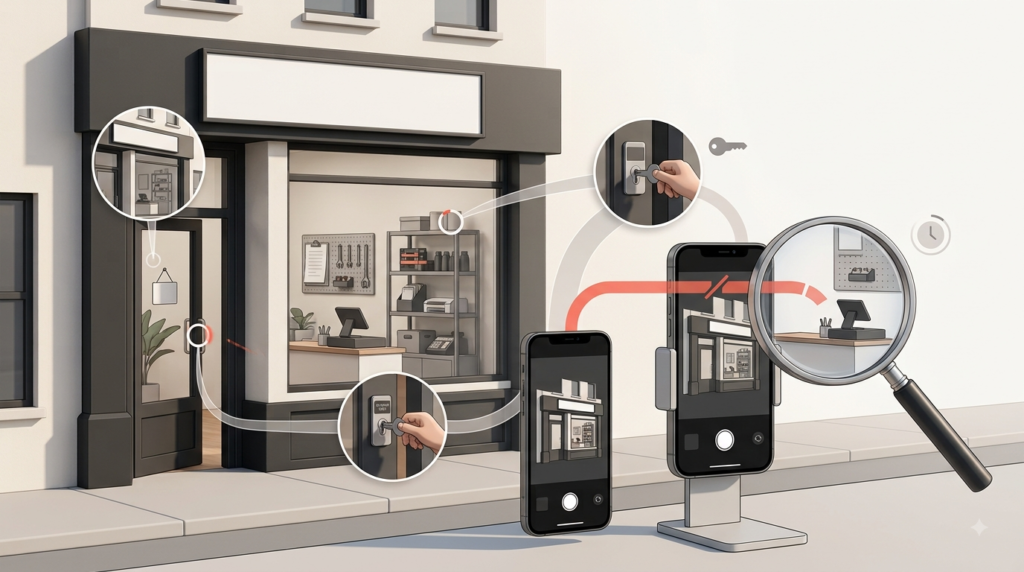
Google Business Profile • Video Verification Troubleshooting • Updated August 2026
If your Google Business Profile verification video failed, do not record the same video again until you know what Google is actually showing. Review issues, Upload failed, Verification in progress, Get verified, and No more ways to verify are different problems and require different next steps. Start with the exact status, then fix the missing location, business, or management evidence.
By Rahul Saini, Founder / SEO Strategist at Search Counsel Co. • Requirements reviewed August 2026
What should you do if Google Business Profile video verification fails?
First identify the verification state. If Google shows Review issues, the video was reviewed and the missing evidence needs to be corrected. If the upload failed, retry the submission. If verification is in progress, Google says review can take up to five business days. If there are no more ways to verify, stop repeating the same flow and use the verification-status or support route available to the managing account.
Video reviewed
Review issues
Fix the exact evidence Google says is missing.
Submission problem
Upload failed
Retry the upload before changing accurate business data.
Under review
Verification in progress
Wait through Google’s stated review window.
Methods exhausted
No more ways to verify
Use the current support or verification-status route.
Jump to the exact problem
1. Start here: match the verification status to the next action
“Video verification failed” is not one single problem. The message shown inside the Business Profile tells you which workflow you are actually in.
| What Google shows | What it usually means | Best next action | Do not do yet |
|---|---|---|---|
| Review issues | Google reviewed the recording and did not accept all required evidence. | Open every listed issue and build a corrected recording around the missing proof. | Do not submit the same route unchanged. |
| Upload failed | The recording may not have reached review. | Retry the upload through the Business Profile mobile flow. | Do not rewrite correct profile data just because the upload failed. |
| Verification in progress | Google is still reviewing the submission. | Wait through the stated review period, which Google says can take up to five business days. | Do not keep restarting verification while review remains active. |
| Get verified | Verification is not complete. The button alone does not explain why. | Open the verification flow and record the exact method or message currently offered. | Do not assume you are suspended. |
| Additional information required | Google needs another verification step or additional evidence. | Follow the exact prompt shown to the managing account. | Do not submit invented signage, addresses, documents or locations. |
| No more ways to verify | The automated verification methods currently available to the profile appear to be exhausted. | Preserve the status and use Google’s current verification-status or support route while signed into the managing account. | Do not create a duplicate profile to work around verification. |
| Profile suspended | This is no longer just a failed-video problem. | Use Google’s suspension/appeal workflow and correct genuine eligibility or profile issues. | Do not keep submitting verification videos as if the profile were simply pending. |
Google requirement
Google automatically determines which verification methods are available to a profile. You cannot simply choose phone, email, live video, postcard or recorded video because you prefer one method.
2. What Google officially requires in a verification video
Before diagnosing the rejection, make sure the recording itself followed Google’s current rules.
- Record the video live. Google does not allow you to upload a previously recorded verification video later.
- Use a mobile device through the Business Profile verification flow.
- Keep it continuous and unedited.
- Record at least 30 seconds.
- Prove the location.
- Prove the business exists and operates.
- Prove you are authorized to manage it.
- Avoid sensitive information such as faces, IDs, bank information, tax numbers and private customer data.
Official guidance: Google Business Profile Help — Verify your business with a video recording.
Do not pre-record your verification video.
Verification video is different from uploading normal Business Profile media. Google requires the verification recording to be created live inside the verification flow.
3. `Review issues`: fix the exact evidence Google says is missing
If Google shows Review issues, the video was reviewed but did not satisfy every required proof job.
Google’s resubmission principle: the new recording should include the requirements from the first recording plus the additional evidence needed to correct the rejection.
Official example: “Business name not visible on storefront”
Google-documented example
For a storefront or hybrid business, Google expects the business name to appear on permanent fixed signage such as a wall, window, signboard or entrance.
The sign should represent the real-world business name used on the profile. A temporary paper sign does not repair a location that does not genuinely operate as the named storefront.
Official example: “No nearby area shown”
Google-documented example
Google needs location context that connects the recording to the place represented by the Business Profile.
A stronger route can begin with a street sign, building number, nearby business or stable landmark and then move toward the premises or operating evidence.
Official example: missing proof that you are authorized to operate the business
Google-documented example
The recording needs evidence that you manage or represent the business, not merely that you can stand near it.
Useful management evidence can include actions a normal customer cannot perform, such as unlocking an employee-only area, operating controlled equipment, accessing a work vehicle, or showing a non-sensitive business document that matches the profile.
Other rejection wording
Interface wording can vary
Messages about a location mismatch, weak business proof or other evidence problems may vary by profile and interface. Treat the exact wording shown in your account as the source of truth for your next recording.
4. Video upload failed? That is not the same as video rejection
An upload error does not necessarily mean Google reviewed your video and rejected your business evidence.
Google’s guidance is straightforward: if the upload fails, upload the video again.
Search Counsel troubleshooting recommendation
Before retrying, it is sensible to check your connection, camera/location permissions, available device storage, and whether the mobile browser or app flow is working normally. These are practical checks, not Google-confirmed explanations for every upload failure.
Do not change accurate business information solely because an upload failed.
5. “No more ways to verify”: what should you do?
Do not keep repeating the same verification attempt.
“No more ways to verify” generally indicates that the automated verification methods currently available to the profile have been exhausted. Preserve the exact status and move to Google’s current verification-status or support path while signed into the Google Account that manages the profile.
Community-reported issue
Recent Google Business Profile Community cases show businesses encountering this state after unsuccessful video attempts. Product Experts commonly direct users toward Google’s verification-status or support workflow. This is community guidance, not a guarantee that Google will manually approve the profile or offer a particular alternative method.
Prepare before escalating:
- Business name
- Business Profile URL
- Managing Google Account
- Exact verification status
- Exact rejection wording
- Dates of previous attempts
- Screenshots of the status
- Existing support case number, if one exists
Keep private identifiers and account information out of public forums.
6. Google Business Profile verification keeps failing: how to break the loop
If you have already recorded two or three videos, the right response is not automatically “record more.”
| Stage | What to check |
|---|---|
| First rejection | Fix the exact evidence Google identified under Review issues. |
| Second rejection | Audit the entire proof chain: location, business activity/existence and management access. |
| Repeated rejection | Re-check eligibility, business model, address visibility, signage, profile name, map pin, virtual-office/coworking issues and whether another method is actually available. |
| No methods remain | Stop repeating the same automated route and preserve the case for the support/status workflow. |
A better video cannot fix an ineligible Business Profile.
7. Service-area or home-based business video verification failed?
A legitimate service-area business does not need to pretend it has a customer-facing storefront.
Google’s official video guidance gives a different evidence model for businesses that travel to customers.
What to show
- A nearby street name, local landmark or other location identifier near the legitimate operating base.
- Professional tools or equipment used for the service.
- A workspace or inventory connected to the business.
- Business materials.
- A branded work vehicle when one genuinely exists and is relevant.
- Evidence that you control the equipment, vehicle, workspace or business documents.
Do service-area businesses need storefront signage?
Not if customers do not visit a storefront. Do not manufacture storefront evidence for a business that genuinely travels to customers.
Should the home or operating address be visible publicly?
Google says service-area businesses that do not receive customers at the operating address should hide that address from the public profile.
Before another verification attempt, make sure the profile actually uses the correct business model. Our NAP consistency guide can help identify genuine business-data conflicts.
8. Storefront or hybrid verification failed?
For a storefront or hybrid business, the recording should create one continuous chain connecting the map location to the named business and then to your management access.
| Proof job | Useful evidence |
|---|---|
| Location | Street sign, building number, nearby business, customer entrance. |
| Business identity | Permanent signage matching the real-world business name. |
| Business activity | Products, tools, work areas, equipment, counter, kitchen or service setup. |
| Management | Unlock controlled areas, operate POS/equipment, access employee-only space or other legitimate proof of control. |
9. Virtual office, coworking or wrong address: when another video will not fix the problem
Some verification failures are really eligibility problems.
Google’s business-representation guidelines say businesses should represent a real location that meets customers or from which an eligible service-area business operates.
Virtual offices
Renting a mailing address or virtual-office address does not automatically make that location eligible for a Business Profile.
Coworking spaces
A coworking location generally needs to represent a genuine staffed customer-facing business presence, including appropriate signage and staff from the business during its stated hours.
Wrong business model
If customers do not visit the address, the correct fix may be to use a service-area model and hide the address—not to make the location look like a storefront in the video.
Official representation rules: Google Business Profile guidelines for representing your business.
10. Why is Google asking you to verify again?
A previously verified profile can sometimes require verification again.
Google states that changes to business information can trigger re-verification.
Common situations to review include:
- address changes;
- moves;
- business-name changes;
- changes to how customers interact with the business;
- other significant profile edits.
If Google asks for another method after the recorded video, use the method actually offered in the profile. Google’s current guidance says some businesses may need more than one verification method.
11. Can you request phone, email or live video instead?
You cannot manually choose the verification method.
Google determines which methods are available to each Business Profile. Depending on the profile, Google may offer recorded video, phone or text, email, live video or mail.
If another method appears, you can use it.
If it does not appear, contacting support about the verification problem does not guarantee that Google will enable your preferred method.
12. Build a stronger evidence plan before recording again
A longer video is not automatically stronger.
Plan the recording around three proof jobs:
Proof 1
Location
Connect the recording to the real operating location or service-area base.
Proof 2
Business
Show the named business actually exists and performs the work represented by the profile.
Proof 3
Management
Show control or access that a customer or passer-by would not normally have.
Evidence strength matrix
| Evidence level | Example | Why it matters |
|---|---|---|
| Strong chain | Location evidence → real business evidence → controlled access. | Connects the profile to the location, business and manager in one continuous route. |
| Useful support | Tools, inventory, vehicle, business cards or non-sensitive documents. | Adds context when it clearly matches the business. |
| Weak alone | Generic desk, building, vehicle or tools. | Does not clearly prove the specific named business or your authority. |
| Risky / invalid | Fake sign, borrowed address, edited footage, IDs or customer data. | Conflicts with Google’s real-world representation requirements or privacy rules. |
13. Example recording route for a storefront or hybrid business
- Start with a street sign, building number or recognizable nearby business.
- Move toward the customer-facing entrance.
- Clearly show permanent business signage.
- Enter and show real products, tools, work areas or equipment.
- Finish with management proof such as controlled access, employee-only space or operating equipment.
This is a planning route—not a mandatory Google script. Use the real evidence available at your business.
14. Example recording route for a service-area or home-based business
- Show a nearby street or local identifier connected to the legitimate operating base.
- Move to professional tools, workspace, inventory or business materials.
- Show a work vehicle if it genuinely belongs to the business and helps establish the operation.
- Finish with legitimate proof of management or controlled access.
Do not expose private home details unnecessarily and do not create storefront evidence that does not exist.
15. When should you wait, retry, re-record or contact support?
| Action | Use it when |
|---|---|
| Wait | Verification is still in progress and Google’s review window has not passed. |
| Retry upload | The upload itself failed and the recording apparently did not enter review. |
| Re-record | Google reviewed the video and displayed Review issues or other evidence-related rejection. |
| Contact support / use verification-status flow | The review exceeds the documented window, the flow repeatedly fails, or no verification methods remain. |
| Use appeal/suspension workflow | The profile is suspended rather than merely unverified. |
16. What not to do after video verification fails
- Do not submit the identical failed evidence repeatedly.
- Do not create fake permanent signage.
- Do not use a borrowed or ineligible address.
- Do not expose a home address publicly if the business should be configured as a service-area business.
- Do not edit accurate profile details simply to try to trigger a different method.
- Do not create a duplicate profile to bypass verification.
- Do not show customer faces, IDs, banking details, tax numbers or sensitive documents.
- Do not assume support can manually enable phone or live-video verification.
- Do not upload a pre-recorded verification video.
FAQ: Google Business Profile video verification failures
Why did my Google Business Profile verification video fail?
The video may have failed because Google could not verify one or more required proof areas: the location, the real business operation, or your authority to manage it. Open Review issues and use the exact rejection wording to plan the next recording.
What does Review issues mean?
Review issues means Google reviewed the submitted recording but did not accept all required evidence. Correct the listed problem and submit a new complete recording that retains the necessary evidence from the original attempt.
What does “No more ways to verify” mean?
It generally means the automated verification methods currently available to the profile have been exhausted. Preserve the status and use Google’s current verification-status or support route while signed into the managing account.
How many times can I submit a verification video?
Google’s cited verification guidance does not publish one universal maximum number of video attempts. The important step is to correct the stated problem rather than repeatedly submit the same evidence.
Can I upload a pre-recorded verification video?
No. Google’s current instructions require the verification video to be recorded live and uploaded through the Business Profile mobile verification flow.
How long does video verification take?
Google says review can take up to five business days after the verification steps are completed. If the status remains unresolved after that period, preserve the exact status and use the current support route.
Can a service-area business verify without storefront signage?
Yes, if it is an eligible service-area business. Google provides different verification evidence for businesses that travel to customers, including local identifiers, professional equipment, work materials and management proof.
Why does Google keep asking me to verify?
A previous verification may no longer be sufficient after certain business-information changes, or Google may require an additional verification step. Use the method currently offered in the profile instead of assuming the old verification permanently covers every future edit.
Can I choose phone or live-video verification instead?
Not manually. Google decides which verification methods are available to a profile. If phone, email, mail or live video is offered, you can use it; if it is not offered, you cannot simply enable it yourself.
Does successful verification improve local rankings?
Verification allows you to manage and represent the Business Profile, but it does not guarantee a specific local-pack ranking, traffic level or number of leads.
The one thing to do before recording again
Write down four things first.
- The exact status shown by Google.
- The exact rejection or issue message.
- Your real business model: storefront, hybrid or service-area.
- One strong piece of proof for location, business operation and management.
If any of those four points is unclear, fix that uncertainty before opening the camera.
Related Search Counsel Co. guides
If this is your first verification attempt, use our Google Business Profile setup guide. If the issue is conflicting business data, use our NAP consistency checklist. After verification succeeds, continue with our Google Business Profile optimization guide and Local SEO guide.
Primary sources
| Source | Used for |
|---|---|
| Google Business Profile Help — Video recording verification | Video requirements, storefront/SAB evidence, privacy, Review issues, upload failure and review timing. |
| Google Business Profile Help — Verify your business | Available verification methods and Google’s control over which methods are offered. |
| Guidelines for representing your business on Google | Storefront, service-area, address visibility, virtual-office and business-representation requirements. |
| Google Business Profile Learning Center | Current Business Profile educational and support guidance. |
Editorial note: Google Business Profile verification methods, interface wording and support flows can change. Requirements identified as Google rules are based on current Google Business Profile documentation. Practical troubleshooting suggestions are labeled separately, and community-observed issues are not presented as guaranteed Google policy. Search Counsel Co. cannot select Google’s verification method or guarantee approval.